Aloha folks, long time no post.
Sorry, Zap's been busy with .... stuff.
Also, some other guys than me have been busy and created this neat plugin for using mental ray AND iRay from within Cinema 4D:
It fully supports not only all the standard C4D materials, but also custom shaders in MetaSL, so this is some kick-butt powerful stuff!
Check out the website for more information, coz I must admit I am not an expert on C4D at all, and was not directly involved in this project, so I can't really answer much questions about it, sorry :)
But hey, C4D users - enjoy!
/Z
Showing posts with label MetaSL. Show all posts
Showing posts with label MetaSL. Show all posts
2010-11-23


2010-08-23
More about MetaSL in 3ds Max 2011
Aloha again!
Sorry for not making a proper "post SIGGRAPH post", but I've been "post SIGGRAPH busy". And as always, me being Busy, means good things for you all.... in the future. :)
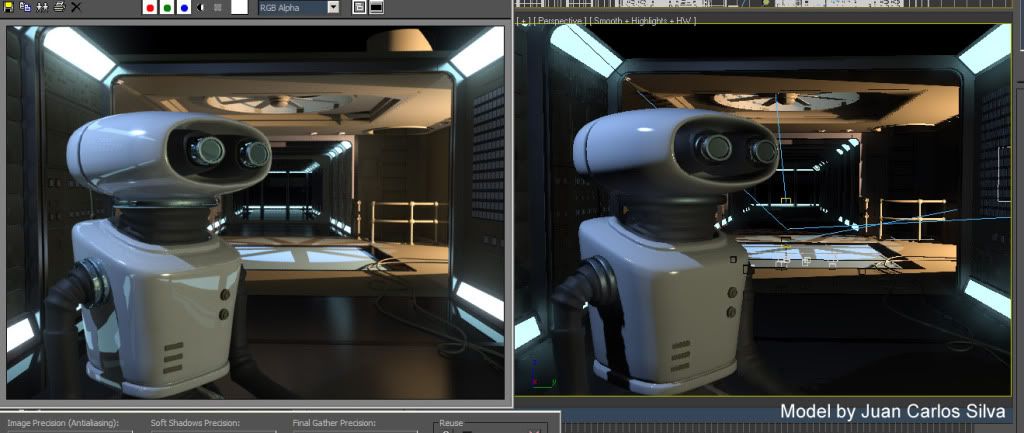
I've gotten a ton of questions about MetaSL in 3ds Max, and since the public beta mentioned in a previous post has now been discontinued (you can still use the 30 day trial if you like it will time out approximately the same time that the public beta would have timed out anyway), the interest in "what was the app actually doing and can I do it myself" has increased.
So let me explain the process 3ds Max uses to load/use a MetaSL shader:
Max uses configuration files located in the <3dsmax>\mentalimages\shaders_standard\MetaSL\Config directory to define how it works.
First there is a file in this directory named MaxMetaSLNodeTexmap.tbx. This file contains entries of which MetaSL shaders are shown in the MetaSL section in the Slate material editor.
By default, only a handful of shaders are actually in this file, but anyone can open up this file and add new entries for any of the standard MetaSL shaders that ship with max (and all the shaders in mental mill are included in this set).
So by adding a line like, for example
<palette_item type="node_class" node_class="generator_blend_ramp" image="conversion.bmp"/>
...will make the standard shader generator_blend_ramp visible in your Slate "MetaSL" toolbox! (NOTE: You must add it before the closing "<palette/>" line)
That's fine for "standard" shaders, but what about adding your OWN shader?
Well, when max is looking for a MetaSL shader name (technically, a MetaSL class name), it rummages through the file NodeToMsl_MappingTable.xml in that same directory.
This file contains entries similar to these:
<Item ClassName="Color_contrast" XMSLName="color_balance.xmsl"/>
<Item ClassName="Color_gamma" XMSLName="color_balance.xmsl"/>
<Item ClassName="Color_saturation" XMSLName="color_balance.xmsl"/>
This links a class name ("Color_contrast" for example) to a file that needs to be loaded to define that class name ("color_balance.xmsl" in that case).
If we further look into the file "color_balance.xmsl" (which lives in the <3dsmax>\mentalimages\shaders_standard\MetaSL\XMSL directory), we will find it consists only of this line:
<root>
<metasl_code file_name="color_balance.msl"/>
</root>
What we see is that this file simply loads the "color_balance.msl" file (which lives in the <3dsmax>\mentalimages\shaders_standard\MetaSL\MSL directory). Now this XMSL file could have defined a whole phenomena of it's own (of the desired class name), but in this case it didn't... it simply deffered to say "nah, to find that class, just load this MSL file, it will defined that class".
And if we were to open up "generator_blend_ramp.msl" we will find some shader code that indeed defines this shader.
So, to add our OWN shader, all we need to do are the following steps. Assume we have a simple shader that multiplies two colors, like this:
#1: We our shader code in a file in the <3dsmax>\mentalimages\shaders_standard\MetaSL\MSL directory in a file named multi_two_colors.MSL
#2: Create an XMSL file in the <3dsmax>\mentalimages\shaders_standard\MetaSL\MSL\mult_two_colors.xmsl that simply reffers to the MSL file, using the simple format above, e.g.
<root>
<metasl_code file_name="mult_two_colors.msl"/>
</root>
#3: Add an entry in the <3dsmax>\mentalimages\shaders_standard\MetaSL\Config\NodeToMSL_MappingTable.xml file for the new class, mapping the shader name ("mul2colors") to the .xmsl file name ("mult_two_colors.xmsl")
<Item ClassName="mul2color" XMSLName="mult_two_colors.xmsl"/>
#4: Finally, make it visible by adding it to the 3ds Max MetaSL Slate toolbox by adding a line to the <3dsmax>\mentalimages\shaders_standard\MetaSL\Config\MaxMetaSLNodeTexmap.tbx file (prior to the closing "<palette/>" line:
<palette_item type="node_class" node_class="mul2colors" image="conversion.bmp"/>
Note: The name of the bitmap isn't important since 3ds Max creates it's own bitmaps by actually running the shader w. it's default parameters to generate the toolbox icon.
Hope this makes sense?
ALSO, DO NOT FORGET that my FXPHD class is still running... we're in the week 5 "break week" currently. There is still time to sign up (FXPHD allows signups up until the 8:th class week). So be there, or be hexagonal! ;)
/Z
Sorry for not making a proper "post SIGGRAPH post", but I've been "post SIGGRAPH busy". And as always, me being Busy, means good things for you all.... in the future. :)
I've gotten a ton of questions about MetaSL in 3ds Max, and since the public beta mentioned in a previous post has now been discontinued (you can still use the 30 day trial if you like it will time out approximately the same time that the public beta would have timed out anyway), the interest in "what was the app actually doing and can I do it myself" has increased.
So let me explain the process 3ds Max uses to load/use a MetaSL shader:
Max uses configuration files located in the <3dsmax>\mentalimages\shaders_standard\MetaSL\Config directory to define how it works.
First there is a file in this directory named MaxMetaSLNodeTexmap.tbx. This file contains entries of which MetaSL shaders are shown in the MetaSL section in the Slate material editor.
By default, only a handful of shaders are actually in this file, but anyone can open up this file and add new entries for any of the standard MetaSL shaders that ship with max (and all the shaders in mental mill are included in this set).
So by adding a line like, for example
<palette_item type="node_class" node_class="generator_blend_ramp" image="conversion.bmp"/>
...will make the standard shader generator_blend_ramp visible in your Slate "MetaSL" toolbox! (NOTE: You must add it before the closing "<palette/>" line)
That's fine for "standard" shaders, but what about adding your OWN shader?
Well, when max is looking for a MetaSL shader name (technically, a MetaSL class name), it rummages through the file NodeToMsl_MappingTable.xml in that same directory.
This file contains entries similar to these:
<Item ClassName="Color_contrast" XMSLName="color_balance.xmsl"/>
<Item ClassName="Color_gamma" XMSLName="color_balance.xmsl"/>
<Item ClassName="Color_saturation" XMSLName="color_balance.xmsl"/>
This links a class name ("Color_contrast" for example) to a file that needs to be loaded to define that class name ("color_balance.xmsl" in that case).
If we further look into the file "color_balance.xmsl" (which lives in the <3dsmax>\mentalimages\shaders_standard\MetaSL\XMSL directory), we will find it consists only of this line:
<root>
<metasl_code file_name="color_balance.msl"/>
</root>
What we see is that this file simply loads the "color_balance.msl" file (which lives in the <3dsmax>\mentalimages\shaders_standard\MetaSL\MSL directory). Now this XMSL file could have defined a whole phenomena of it's own (of the desired class name), but in this case it didn't... it simply deffered to say "nah, to find that class, just load this MSL file, it will defined that class".
And if we were to open up "generator_blend_ramp.msl" we will find some shader code that indeed defines this shader.
So, to add our OWN shader, all we need to do are the following steps. Assume we have a simple shader that multiplies two colors, like this:
shader mul2colors {
  input:
    Color A;
    Color B;
  output:
    Color result;

  void main() {
    result = A * B;
  }
};
#1: We our shader code in a file in the <3dsmax>\mentalimages\shaders_standard\MetaSL\MSL directory in a file named multi_two_colors.MSL
#2: Create an XMSL file in the <3dsmax>\mentalimages\shaders_standard\MetaSL\MSL\mult_two_colors.xmsl that simply reffers to the MSL file, using the simple format above, e.g.
<root>
<metasl_code file_name="mult_two_colors.msl"/>
</root>
#3: Add an entry in the <3dsmax>\mentalimages\shaders_standard\MetaSL\Config\NodeToMSL_MappingTable.xml file for the new class, mapping the shader name ("mul2colors") to the .xmsl file name ("mult_two_colors.xmsl")
<Item ClassName="mul2color" XMSLName="mult_two_colors.xmsl"/>
#4: Finally, make it visible by adding it to the 3ds Max MetaSL Slate toolbox by adding a line to the <3dsmax>\mentalimages\shaders_standard\MetaSL\Config\MaxMetaSLNodeTexmap.tbx file (prior to the closing "<palette/>" line:
<palette_item type="node_class" node_class="mul2colors" image="conversion.bmp"/>
Note: The name of the bitmap isn't important since 3ds Max creates it's own bitmaps by actually running the shader w. it's default parameters to generate the toolbox icon.
Hope this makes sense?
ALSO, DO NOT FORGET that my FXPHD class is still running... we're in the week 5 "break week" currently. There is still time to sign up (FXPHD allows signups up until the 8:th class week). So be there, or be hexagonal! ;)
/Z
2010-06-22
MetaSL in 3ds Max 2011 - demo
After posting my last post, I've gotten a lot of questions around the MetaSL implementation in 3ds Max 2011 and the Mental Mill SE 1.1 beta. Well... to demonstrate this, I've made a little video presentation (actually a shortened version of what I showed at the EUE event mentioned two posts back).
So click here to check out the video, it's 15 minutes of me rambling....
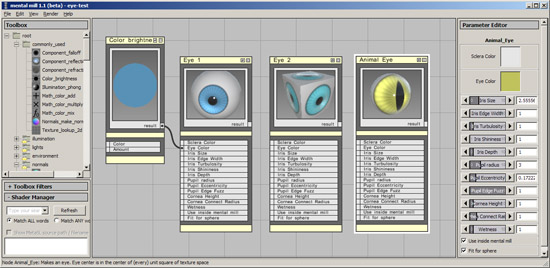
The presentation shows my MetaSL "eye" shader (to be posted soon) run in mental mill, mental ray, 3ds Max viewport, and the Quicksilver renderer.
Enjoy! :)
/Z
So click here to check out the video, it's 15 minutes of me rambling....
The presentation shows my MetaSL "eye" shader (to be posted soon) run in mental mill, mental ray, 3ds Max viewport, and the Quicksilver renderer.
Enjoy! :)
/Z
2010-05-27
mental mill 1.1 Standard Edition public beta 2
Notice: There is a new public beta of mental mill 1.1 Standard Edition

The workflow is basically this:
- Build your shader tree in mental mill
- Select the root node
- Go to File->Export
- Choose the "Autodesk 3ds Max 2011 (Slate Extension)" exporter
- (First time only: Select your 3ds max installation directory)
- Hit "Export" button.
- Start Max
Now you will see the shader in the Slate material editor "MetaSL" category.
These shaders now...
- ...work in the 3ds Max viewport
- ...render in mental ray
- ...render in Quicksilver
- ...and any other MetaSL compatible renderer!
And the coolest part is that it works even with your own custom made MetaSL shaders, in all above renderers! This is different than the MetaSL support in Max 2010 that was locked to the shader set shipping with it. Not so in Max 2011, you can build your own shaders. They compile automatically in the back and "just work". Even raytracing calls in the shaders get converted to the automatically generate cube reflection maps for Quicksliver, which is quite neat :)

Expect lots and lots of posts on this topic coming soon - for those that are curious about this workflow and want to see it up close, and see me debug some shaders live, pop up in Utrecht, Netherlands, next week (June 3-4, 2010) at www.EndUserEvent.com (see previous post)
Known Issues:
- There are some known issues with the Lookup_Texture_2d node not showing in the viewport with gamma correction enabled, but I hear this should be fixed in a 3ds Max service pack (hopefully). It still works in mental ray / Quicksilver.
- If Texture2d inputs exist inside a phenomena in your mill graph but are not exposed to the interface of the Phoneomenon, they will not get properly filled in when loaded into 3ds Max. To fix this, simply expose the "Texture2d" to the interface of the Phenomenon.
Find the download for mental mill 1.1 Standard Edition here
Have fun!
/Z
/Z
2009-06-04
MetaSL shader library opens
Just went live....

This is the first glimpse into the MetaSL material shader library....
http://materials.mentalimages.com
I will post more details later, but until then - have fun ;)
/Z
This is the first glimpse into the MetaSL material shader library....
I will post more details later, but until then - have fun ;)
/Z
Subscribe to:
Posts (Atom)